How to Turn Meeting Notes into Tasks Automatically
Start with your note-taker’s built-in Asana (or other) integration; use Zapier or Make only for a review step or unsupported apps. Send AI tasks to a review list before assigning.

The quickest way to turn meeting notes into tasks is your note-taker's built-in integration. Fireflies and Fathom can both send AI action items straight to Asana, and Fireflies also connects to Trello, ClickUp, monday.com, Jira, Todoist and more. You need an automation tool only for something custom, like a review step, a Slack alert or a task app the note-taker doesn't support. A two-step Zap can be configured as a linked meeting-review task; confirm app eligibility and test it before relying on a free path. Make offers a credit-based configuration alternative, but the pictured scenario was never run. Whichever route you use, send AI-created tasks to a review list first instead of assigning them automatically.
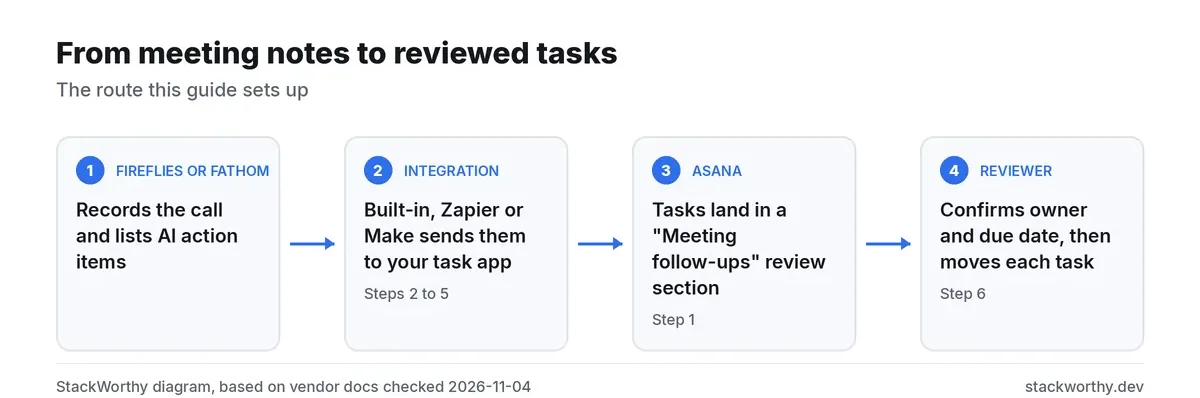
Flow overview: note-taker → automation or built-in → Asana review list.
- A meeting note-taker that produces action items. This guide uses Fireflies.ai and Fathom (both compared in our roundup of AI meeting assistants).
- A task tool. We use Asana as the example; the steps are similar for Trello, ClickUp or Todoist.
- Optional: a free Zapier or Make account, for the custom routes.
- About 30 minutes, and one real meeting to test with.
Step 1: Create a review list for AI-created tasks
Outcome: a single place where every task from a meeting lands before anyone acts on it.
In Asana, add a section called "Meeting follow-ups" to the project your team already uses, or create a small "Triage" project. Every automation below sends tasks there.
This step matters more than any tool choice. AI note-takers pick out action items from what people say, and people say things like "someone should look at that." When a tool guesses who "someone" is, it can assign work to the wrong person or invent a deadline. A review list lets one person spend two minutes after each meeting confirming the owner and due date, then moving each task to the right place.
Step 2: Try your note-taker's built-in integration first
Outcome: action items reach your task tool without Zapier or Make.
Fireflies.ai. Its Free-plan guide says integrations are available on Free, and its Asana guide supports basic action-item task creation. Advanced Integration Rules require Business or higher. The synthetic demo pictured here used Fireflies Free and an Asana Advanced trial; it is not proof that every integration feature is free.
According to Fireflies' help center, setup works like this:
- In Fireflies, open Integrations, search for Asana and click Connect. Sign in to Asana and click Allow.
- Back in Fireflies, choose the Asana workspace, the project and the section for new tasks. Pick the "Meeting follow-ups" section from Step 1. The project has to exist in Asana already.
- Turn on Create tasks from meeting action items.
- Leave Auto-assign tasks to project members off if you're using a review list. When it's on, Fireflies assigns tasks based on the task owner's email.
- Click Create sample tasks and check that a test task appears in Asana.
The team-demo configuration below shows the workspace, project, section and action-item options:
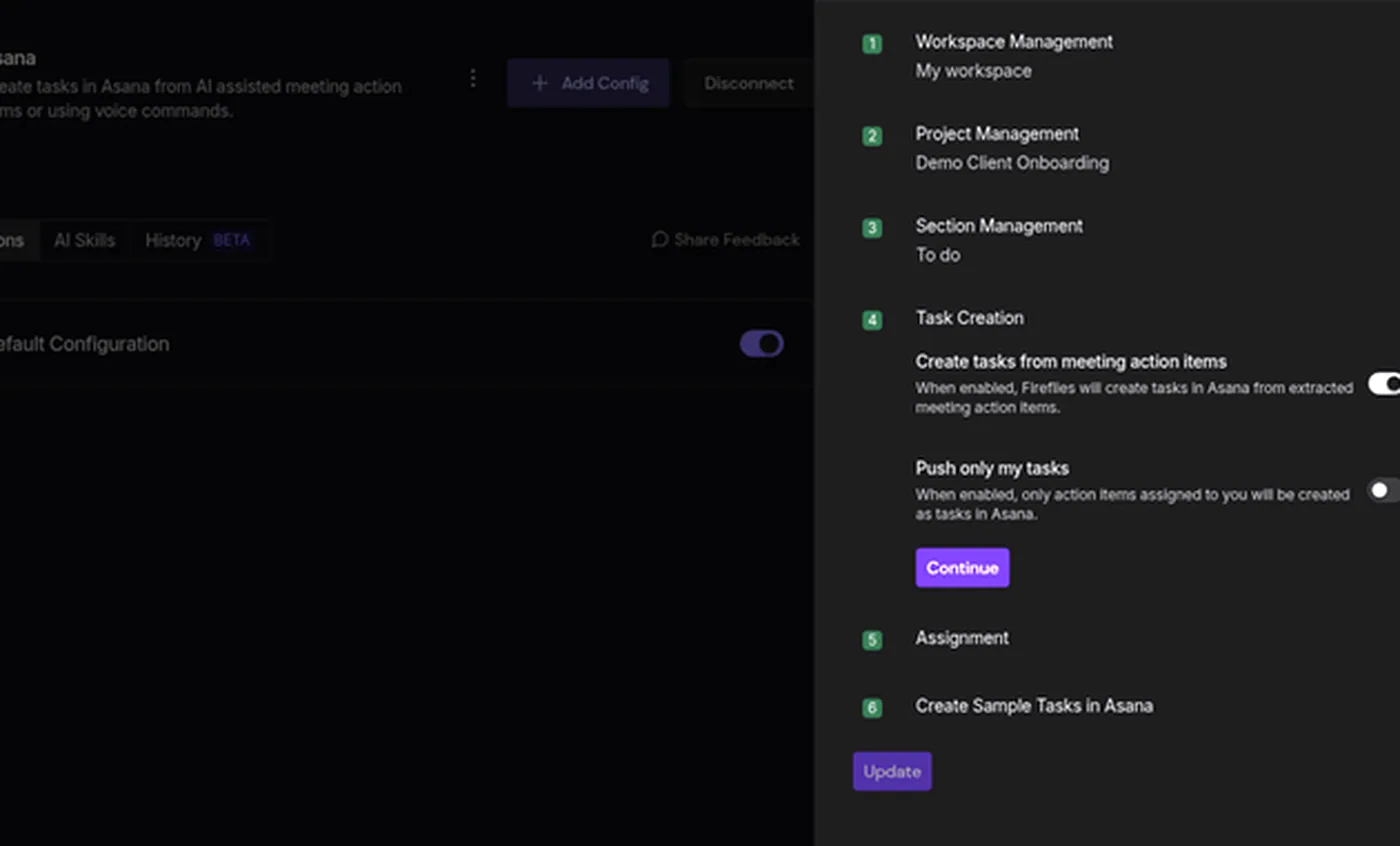
Example Fireflies→Asana setup; synthetic demo meeting.
By default, Fireflies creates tasks for every meeting. Its Integration Rules, which limit task creation to meetings with a certain title or host, are available on Business or higher plans, according to the same help article.
Fathom. Fathom has a native Asana integration that, according to Fathom, sends "highlights and action items from Fathom straight into Asana," and lets you "assign owners, set due dates, and track progress in Asana" from your Fathom notes. Fathom lists AI-generated action items under its paid plans: Premium for individuals ($16 a month on annual billing) and Team ($15 per user a month on annual billing, 2-user minimum). Its free plan records and summarizes calls, but don't count on it for action items. (For what each free plan does include, see our guide to the best free AI note-takers.)
Otter.ai and others. Otter's pricing page lists a Zapier integration on its Pro plan. If your note-taker doesn't connect directly to your task app, use Step 3 or Step 4.
When the built-in route is enough: you use one of the supported task apps, you're happy with the note-taker's choice of action items, and you have a review list from Step 1. Most small teams can stop here.
Step 3: Configure a linked meeting-review task in Zapier
Outcome to configure: a linked meeting-review task in Asana. The pictured Zap is a draft; its Asana action was not tested.
Zapier's free plan allows 100 tasks a month and two-step Zaps only: one trigger and one action. Those plan limits describe a possible two-step design, not verified Free-plan execution of this specific integration:
- In Zapier, create a Zap with the Fireflies.ai trigger New Meeting. Zapier describes it as firing "when a new meeting with transcripts and summary is created," and it runs instantly. Connect the Fireflies account through the OAuth sign-in offered by the Zapier integration.
- Add an Asana action that creates a task in your "Meeting follow-ups" section.
- Map the meeting title into the task name and the observed Summary URL into the description. Open that link to review action items and assign owners and dates. Do not assume full summary or action-item text fields are available; those mappings were not established in this draft.
- Test it with a recent meeting, then turn it on.
The draft below shows the Fireflies trigger and Asana action:
Draft configuration captured during a Zapier Professional trial; the Asana action test was skipped. This is not proof of Free-plan execution.
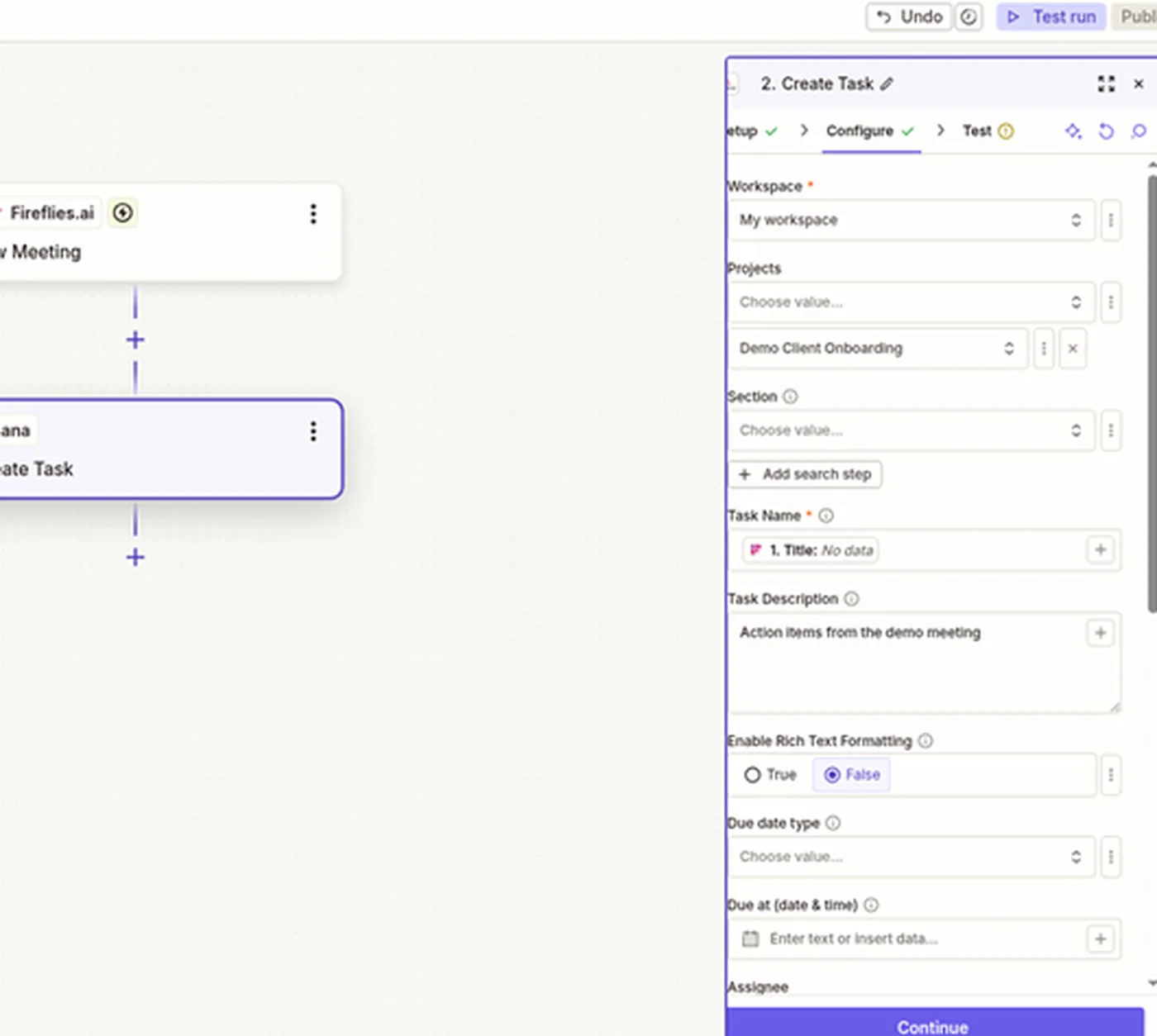
Zapier draft shown configured; Asana action not tested.
Zapier publishes a ready-made template, "Create tasks in Asana for new meetings in Fireflies.ai," that sets up most of this for you.
Can I do this without paying for Zapier? Free lists 100 tasks/month and two-step Zaps, but app eligibility and execution of this exact flow were not verified on Free. The example is an untested action configuration from a Professional trial; confirm requirements and test before enabling it.
Step 4: Add AI clean-up and a Slack alert (Zapier Professional)
Outcome: a cleaner task list with suggested owners and due dates, and a Slack message so the team knows it's there.
Anything beyond one trigger and one action needs a multi-step Zap, and that needs Zapier Professional, which starts at $19.99 a month on annual billing. Professional also adds AI fields, webhooks and unlimited premium apps, according to Zapier's pricing page.
A useful multi-step Zap looks like this:
- Trigger: Fireflies.ai New Meeting, or AI Skill if you've set up a Fireflies AI Skill that already extracts action items. Zapier says AI Skill fires "when a new AI skill output is generated for a meeting."
- AI step: supply action-item text that you have separately retrieved or reviewed; the Summary URL is a link, not full-text input. Ask an AI step to rewrite that text as a checklist, one line each, in the format "Task: owner (if named): due date (if stated)." Tell it to leave the owner and due date blank when nobody said them out loud.
- Asana: create the task in "Meeting follow-ups" with that checklist in the description.
- Slack: post a message to your team channel with a link to the task.
Zapier counts AI steps against the same task allowance as everything else, and more powerful AI models use more tasks, according to its pricing page. Keep the AI step's prompt short and specific.
Step 5: Or configure the flow in Make
Outcome: a configuration for fetching a transcript, creating an Asana task and notifying Slack. The example omits AI clean-up and has not been run; it does not establish free-plan support across the connected services.
Make bills by credits: every module in a workflow (Make calls them "scenarios") uses credits when it runs. The free plan includes 1,000 credits a month. According to Make's help center, each run of a non-AI module usually costs 1 credit, while AI modules cost credits based on tokens as well as operations.
- Connect Fireflies. Make's documentation says to copy your API key from Fireflies (Integrations → Fireflies API) and paste it into the Fireflies.ai connection in Make. Its Fireflies app provides action and search modules.
- Start with a webhook or schedule. Make's Fireflies app has no new-transcript trigger. Supply a transcript ID through a configured webhook, or schedule List Transcripts and select the transcript before Get a Transcript. Configure the event source and access requirements separately; the example below contains a placeholder ID, not a working webhook delivery.
- Optional AI clean-up. Add an AI module with the same prompt as Step 4. This is where most of your credits will go.
- Create the task. Use Asana's Create a Task or a Subtask module to add the task to "Meeting follow-ups."
- Notify the team. Add a Slack module that posts the task link.
Configured example only: the scenario was inactive, used a placeholder transcript ID and was never run.
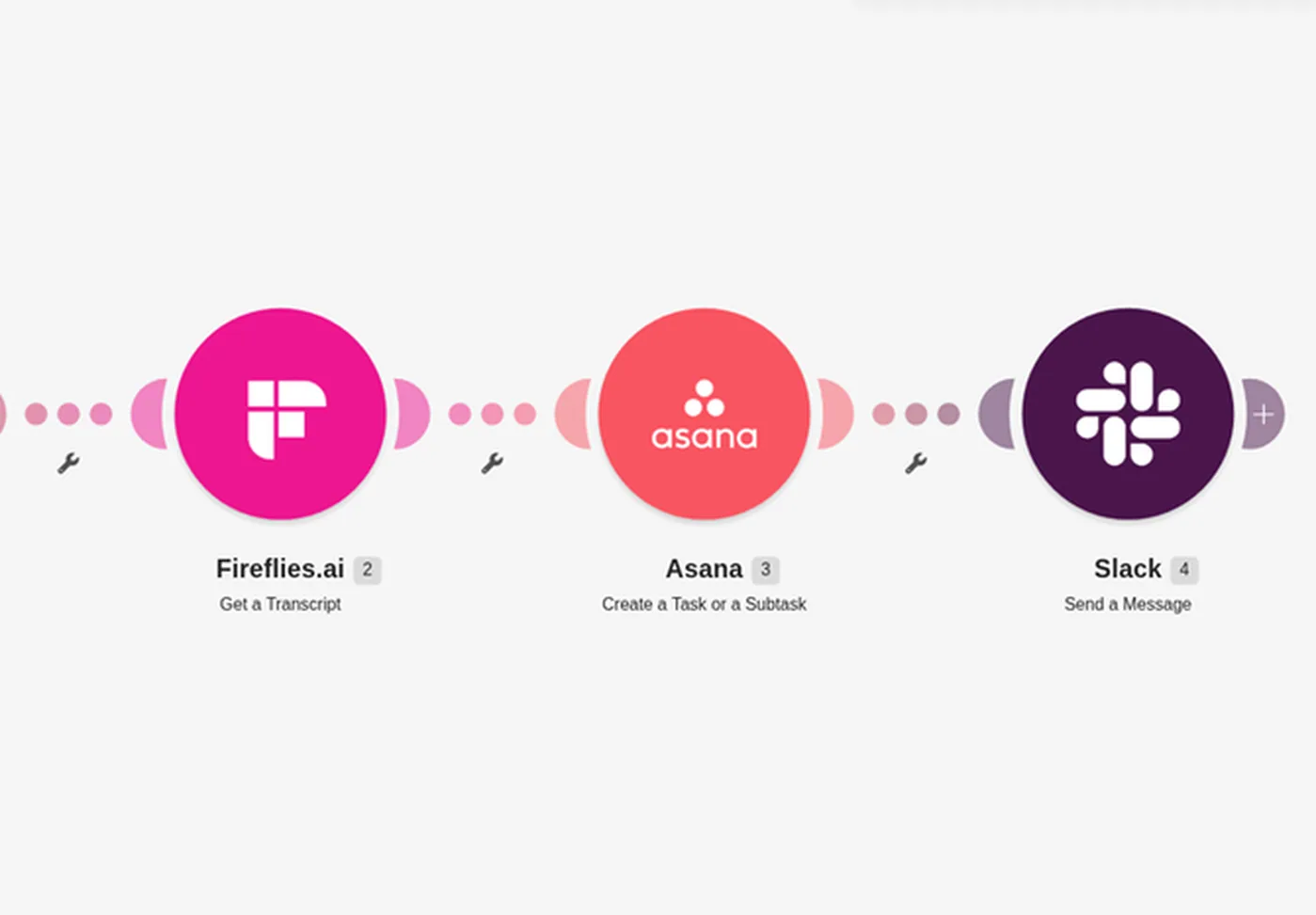
Example workflow set up for illustration; not run.
A scenario like this uses a few credits per meeting for the non-AI modules, plus whatever the AI step costs. For a small team with a handful of meetings a day, that's likely to fit in 1,000 credits a month, but check your credit usage after the first week. Make's help center also says the minimum time between scheduled runs depends on your plan, so check what the free plan allows on Make's pricing page. For a side-by-side look at what Zapier and Make cost at different volumes, see our Zapier vs Make comparison.
Step 6: Get the owner and due date right
Outcome: tasks that land with the right person, with a real deadline or none at all.
- Name owners out loud in meetings. "Priya, can you send the proposal by Friday?" gives any tool a clear owner and date. "Let's get the proposal out" gives it nothing.
- Leave unclear fields blank. In your AI prompt, tell it not to guess. A task with no owner in the review list is better than a task assigned to the wrong person.
- Map names to accounts. If you automate assignment, keep a short list of first names and the email each person uses in Asana, so the automation matches "Priya" to the right account.
- Default to the reviewer. Assign every new task to the person who reviews the list, and let them hand it on.
- Review daily. Two minutes after the last meeting of the day is enough for a small team.
Step 7: Test with one meeting, then turn it on
Outcome: a working automation you trust.
Run the automation on one recent meeting where you remember the action items. Check that every item made it into the task, that nothing was invented, and that owners and dates match what was said. Fix the prompt or the field mapping, test again, then turn it on and watch the first week of tasks closely.
In the synthetic-audio demo, Fireflies listed five action items and four Asana tasks appeared. The opened task in the screenshot has no assignee and no due date; both synthetic voices were labelled Speaker 1. Review missing items and ownership before relying on the output. The Asana account was on an Advanced trial.
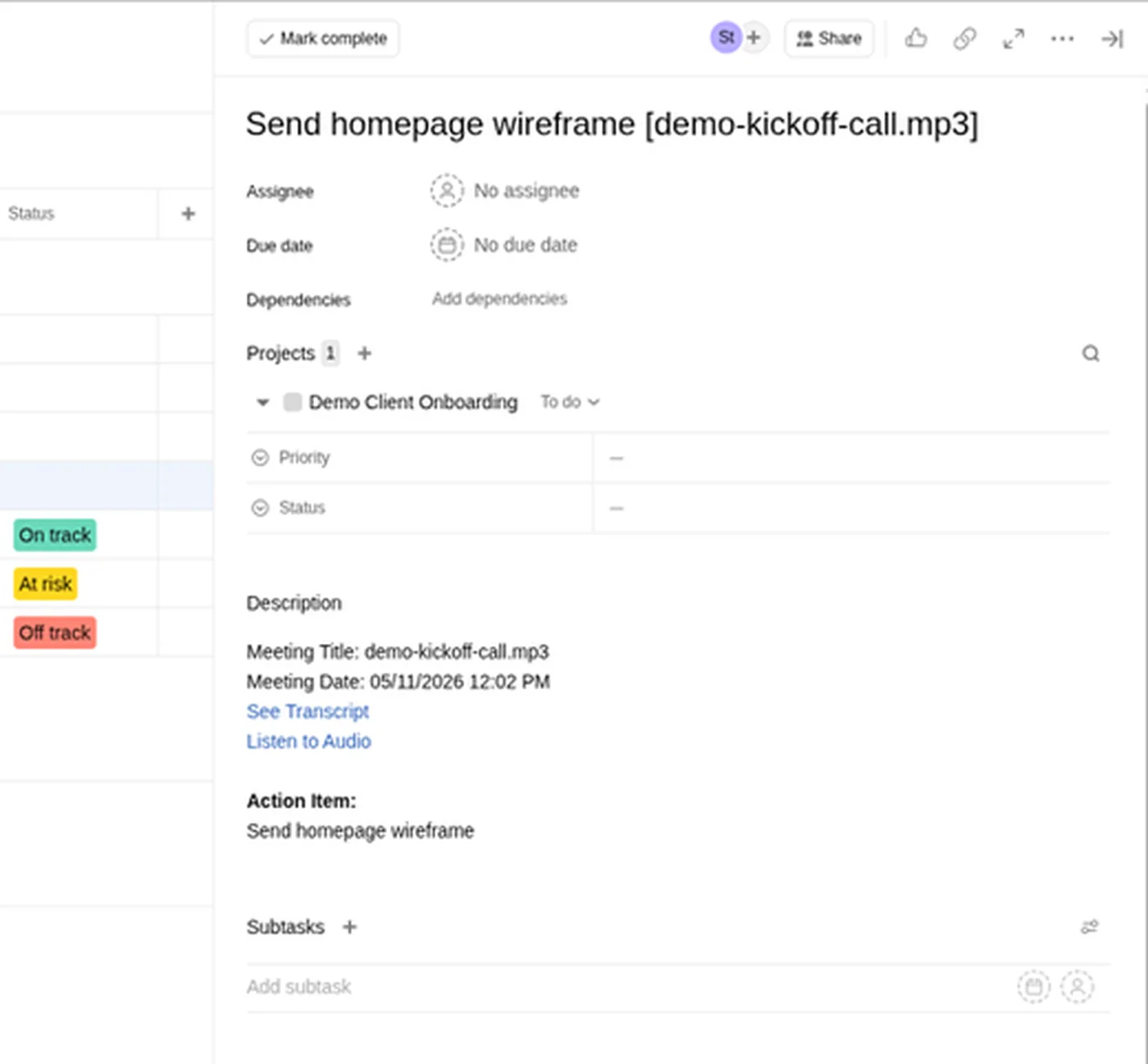
Opened demo task has no assignee or due date.
Which route should you choose?
| If you… | Use |
|---|---|
| want basic Fireflies native action-item push to a supported task app | Fireflies' built-in integration |
| use Fathom on a paid plan with Asana | Fathom's Asana integration |
| want a two-step meeting-review task design (confirm app eligibility) | Two-step Zap design (Step 3); exact Free-plan execution unverified |
| want AI clean-up and Slack alerts and don't mind paying | Zapier Professional (Step 4) |
| want a configurable credit-based route | Make configuration (Step 5); confirm connected-service eligibility and costs, then test before enabling |
Not sure which note-taker to use yet? Our Fireflies vs Otter comparison covers integrations in detail. For a wider solo-operator playbook, see 10 AI automations every solopreneur should set up.
Get the StackWorthy briefing
One short email when tools worth your money change. No spam.
Frequently asked questions
Can I turn meeting notes into tasks without paying for Zapier?
Zapier Free lists two-step Zaps and 100 tasks a month, but the pictured integration was a Professional-trial draft with its Asana action untested. Confirm app eligibility before relying on a free path. The configured design links a meeting-review task to the Summary URL; it does not establish automatic full-summary or action-item mapping.
Which AI note-taker has the best native task integrations?
Fireflies lists broad project-management integrations. Its Free-plan guide supports basic integrations, including action-item task creation; advanced Asana Integration Rules require Business or higher. The limited synthetic demo used Fireflies Free and Asana Advanced trial. Fathom also offers an Asana integration; compare current plan requirements.
How do I get the owner and due date right on automatic tasks?
Name owners and dates out loud in the meeting, tell any AI step to leave unclear fields blank, and send new tasks to a review list instead of assigning them automatically. One person can then confirm each task in a couple of minutes.